Ultra Lobster for Obsidian
Ultra Lobster by kneecaps is an Obsidian theme with dark and light modes and 67K downloads.
Preview
Theme preview
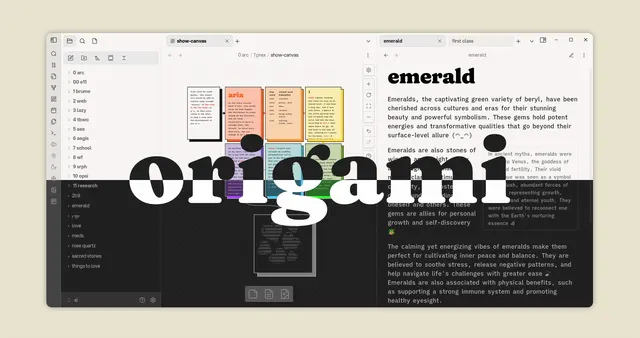
An Obsidian window rendered with this theme’s palette.
Obsidian desktop preview
412 words2,608 characters
Syntax colors, highlights, links, tags, and checkboxes use this theme's palette; window chrome and layout follow Obsidian's default stylesheet.
Install
Install in Obsidian
- Open Settings → Appearance → Themes, then Manage.
- Search for “Ultra Lobster” and install it. Obsidian keeps community themes updated.
- Or create the folder below and save both
theme.cssandmanifest.jsonin it, then reload Obsidian.
Theme folder
.obsidian/themes/Ultra Lobster/theme.css
.obsidian/themes/Ultra Lobster/manifest.jsonColors
Palette
Colors extracted from the theme stylesheet.
Dark
Text#565f89
Muted text#3b4261
Text accent#ffd91a
Accent background#ffd91a
Highlight background#ffd00066
Red#f7768e
Orange#ff9e64
Yellow#e0af68
Green#9ece6a
Cyan#7dcfff
Blue#7aa2f7
Purple#bb9af7
Pink#f7768e
Code background#393e48
Base 05#0d0d0d
Base 20#16161e
Base 50#3b4261
Base 70#565f89
Base 100#c0caf5
Light
Text#696c77
Muted text#9a9b9c
Text accent#9a453c
Accent background#9a453c
Highlight background#ffd00066
Red#e45649
Orange#c18401
Yellow#986801
Green#50a14f
Cyan#0184bc
Blue#4078f2
Purple#a626a4
Pink#ca1243
Code background#d8e4f5
Base 05#f9f9f9
Base 20#f0f0f0
Base 50#9a9b9c
Base 70#696c77
Base 100#383a42
Contrast — Dark
This theme does not set its own note background for dark mode, so the page cannot grade its text. Obsidian's default background applies.
Contrast — Light
This theme does not set its own note background for light mode, so the page cannot grade its text. Obsidian's default background applies.